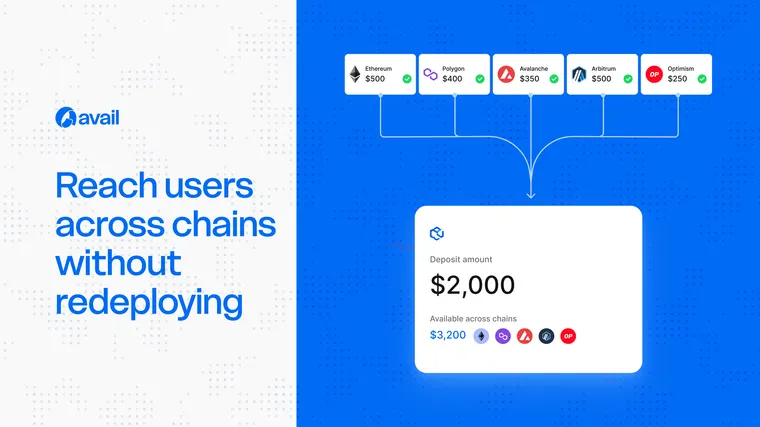




Keep the app where it creates the most value
An app can keep settlement, liquidity and product logic on its chosen chain while offering an app-native funding path from supported source chains. The destination remains fixed; the funding options expand.
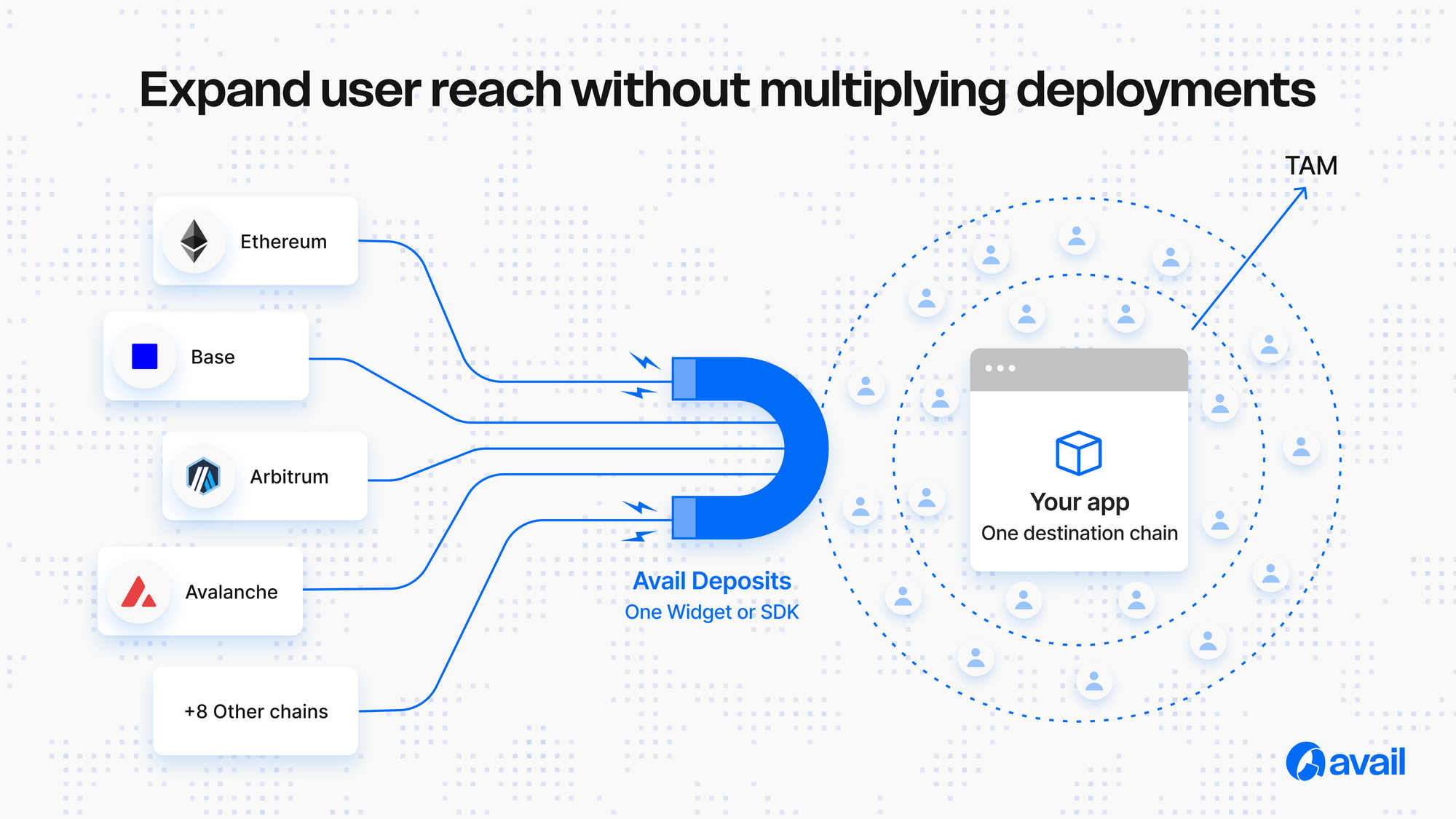
Use one deposit integration
Avail Deposits provides a Widget for a pre-built experience and an SDK for custom interfaces. The integration presents eligible funding sources and coordinates supported routes into the destination asset required by the app.
What this reduces
Teams avoid rebuilding the full product merely to capture users who start elsewhere. Users avoid manually bridging, switching networks and sourcing destination gas before they can begin.
What it does not remove
Cross-chain deposits do not replace product decisions about liquidity depth, destination capacity, compliance, risk or chain-specific functionality. They solve access to the chosen destination, not every reason an app might deploy elsewhere.
A useful expansion test
Ask whether the opportunity requires local execution on another chain or simply easier access for users and liquidity on that chain. If access is the main barrier, a deposit integration may be the smaller and faster intervention.