



Choose the integration surface
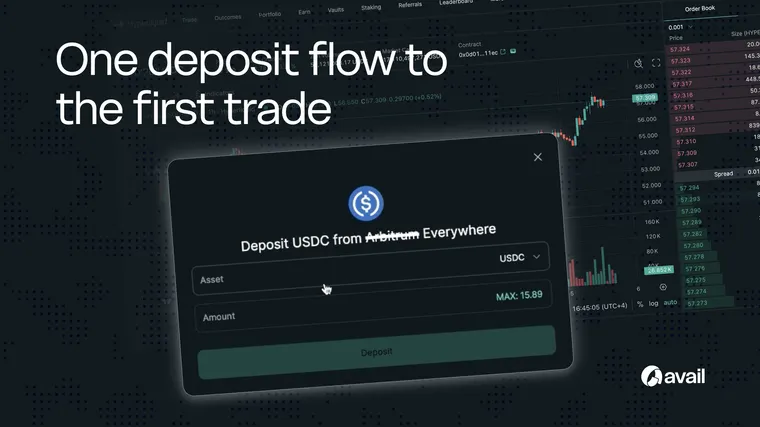
Use the Widget for a configurable drop-in interface. Use the SDK when the DEX needs to own the entire presentation, connect deposits to its balance model or trigger a specific action after completion.
Configure the destination
Set the destination chain, preferred destination asset and any app-level constraints. Present only eligible sources and keep the expected received amount visible before confirmation.
Connect completion to the DEX
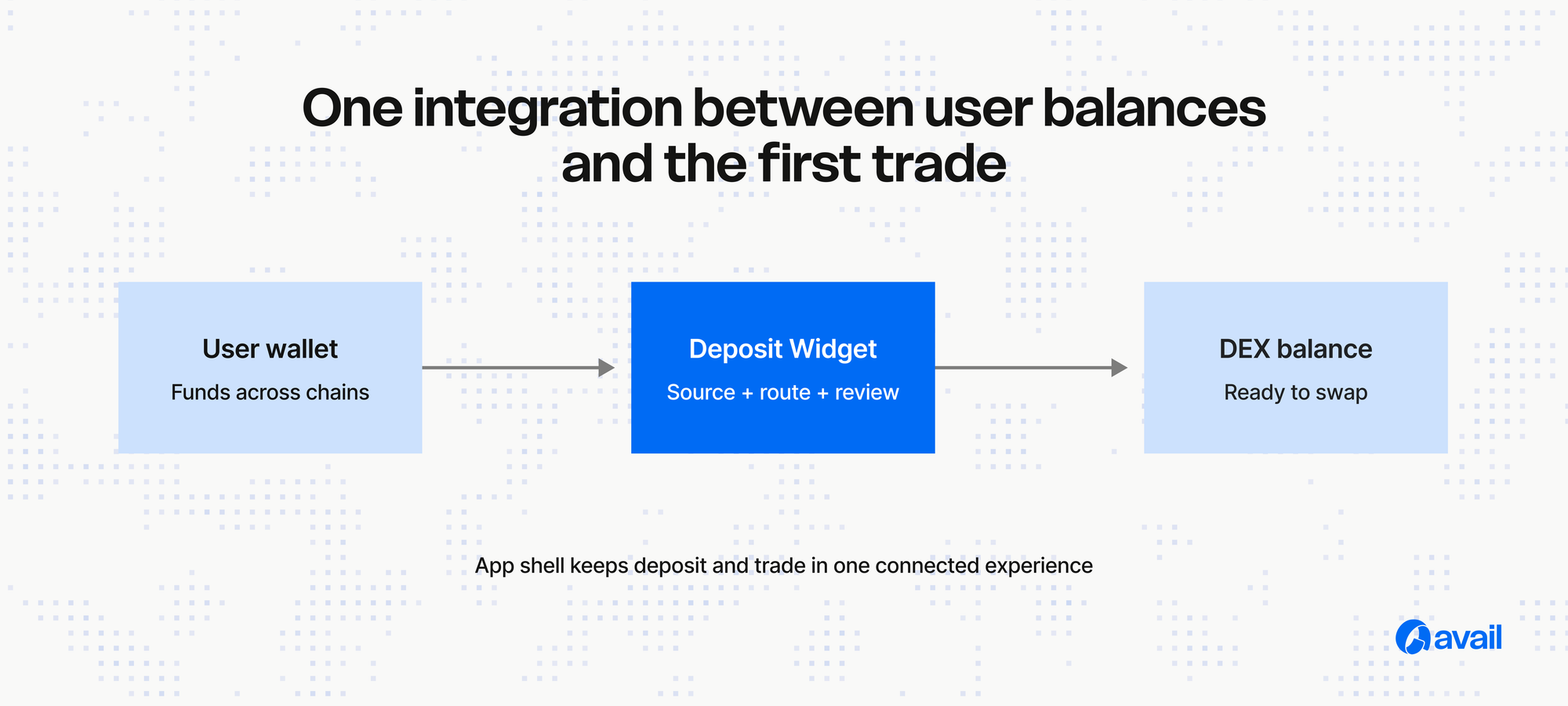
After a successful deposit, refresh balances and return the user to the relevant trade, market or portfolio state. The deposit should feel like the first step of a trade, not a disconnected utility.
Test the failure states
Test unsupported assets, insufficient balance, wallet rejection, quote expiry, route unavailability, delayed completion and recovery. Give the user a clear next action without forcing them to diagnose the underlying protocol stack.
Ship with measurement
Instrument the journey from deposit opened to first trade. Compare eligible-source selection, quote success, confirmation and trade completion so the team can separate funding friction from trading friction.